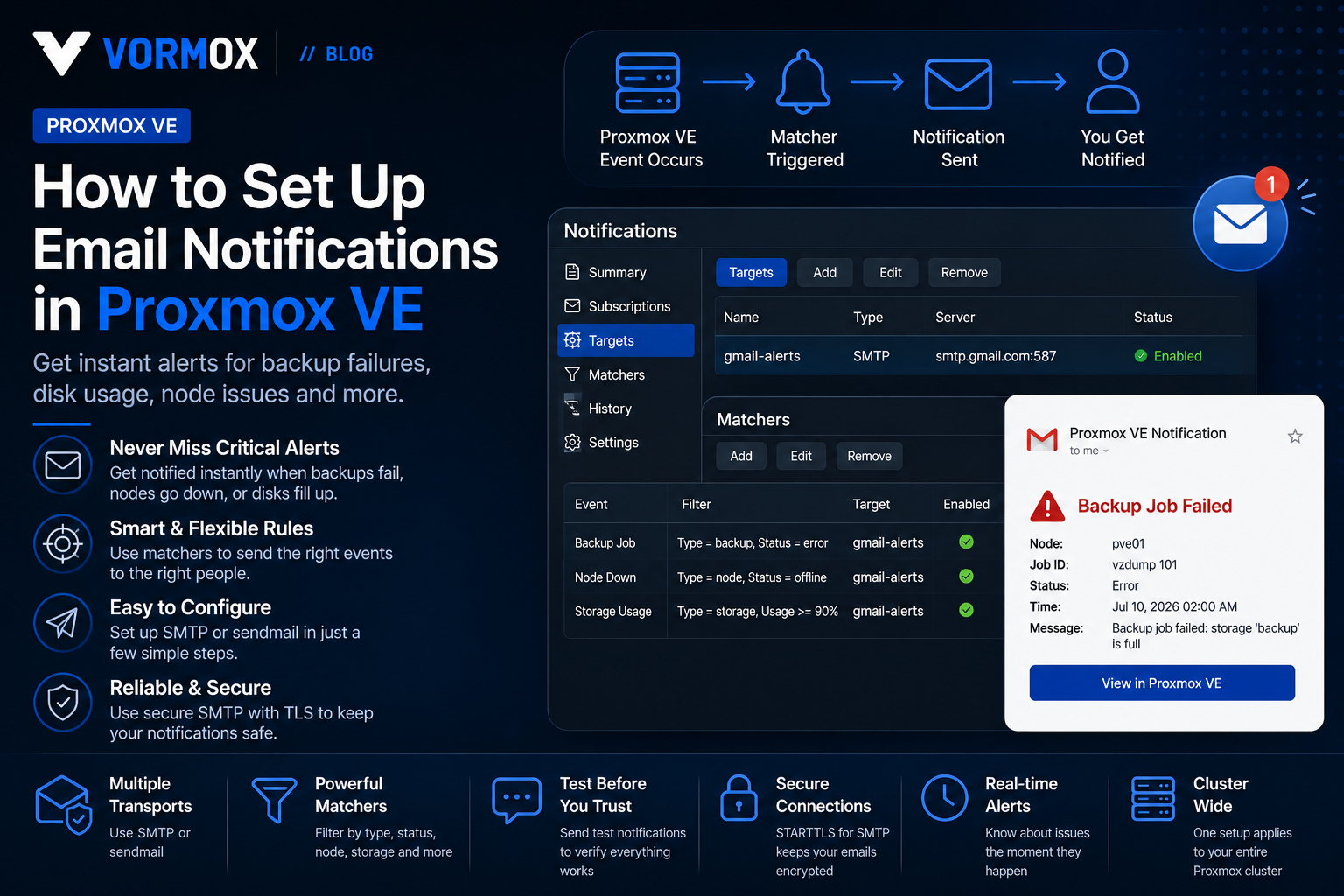
Your Proxmox host runs a backup job every night at 2 AM. One night it fails — maybe the target disk filled up, maybe a VM was locked. You won't know until you happen to log in and check the task log yourself, which for most people means finding out days later, right when you actually need that backup.
Email notifications fix exactly this problem. Proxmox VE can send you an email the moment a backup fails, a disk starts filling up, or a cluster node drops offline — you just have to tell it how to send mail in the first place, since that part isn't configured out of the box.
This guide walks through setting up email notifications in Proxmox VE, using the notification system introduced in version 8.1 and carried forward into 9.x. It covers both ways Proxmox can send mail, how to route specific events to specific addresses, and how to confirm it's actually working before you need it to.
What You Will Learn
- How Proxmox's notification system is structured, and the difference between a target and a matcher
- The difference between the sendmail and SMTP notification target types
- How to set up an SMTP target step by step, using Gmail as a working example
- How to create a matcher so the right events go to the right inbox
- How to send a test notification to confirm everything's wired up correctly
- Common errors and what actually causes them
What Is This Feature?
Proxmox VE's notification system is built around two separate pieces that work together: targets and matchers.
A target is a destination — somewhere a notification can be sent. For email, that's either a sendmail target (which hands the message off to the mail software already running on your Proxmox host) or an SMTP target (which connects directly to an external mail server, like Gmail or your own mail relay, and sends the message itself).
A matcher is a rule that decides which events go to which target. Without any matchers, Proxmox won't send anything anywhere, even if you've configured a perfectly good target. Matchers are what actually connect "a backup job just failed" to "send an email to admin@example.com."
This two-part design is newer than what long-time Proxmox users might remember — older versions just had a single email address field buried in Datacenter options. The split into targets and matchers, introduced in Proxmox VE 8.1, gives you more control: you can send critical alerts to one address and routine backup summaries to another, or only get notified about specific nodes in a cluster.
Why Would You Use It?
The honest answer is that you'll appreciate this the first time it saves you from an unnoticed failure, and not much before that. A few concrete scenarios where it matters:
Failed backup jobs. This is the big one. A backup that silently fails is worse than no backup at all, because you think you're covered and you're not. An email the moment it fails means you can fix the underlying issue (usually storage space or a locked VM) before the next scheduled run.
Storage running low. Proxmox can alert you when a storage volume crosses a usage threshold, which is far better than discovering it when a VM suddenly can't write to disk anymore.
Cluster and node health. If you're running more than one node, getting an email when a node drops out of the cluster means you find out from Proxmox instead of from a user complaining a VM is unreachable.
Package updates available. Proxmox can notify you when new package updates are ready, which is a gentler way to stay on top of patching than remembering to check manually.
None of this requires anything exotic. If you already have a Gmail account, an existing SMTP relay, or just a working local mail setup, you can have this running within about ten minutes.
Prerequisites
- A working Proxmox VE installation (this guide covers 8.1 and later, including 9.x, since that's when the current notification system was introduced)
- Administrator access to the Proxmox web interface
- An email account you can send through — either your own SMTP relay, or a provider like Gmail that supports SMTP with an app password
- If using Gmail: 2-Step Verification enabled on the account, so you can generate an app password (Gmail no longer accepts your regular account password for SMTP)
Step-by-Step Tutorial
Step 1: Open the Notifications panel
In the Proxmox web interface, click Datacenter in the left-hand tree, then go to Notifications. This is where every target and matcher lives, and it applies cluster-wide rather than per-node.
Step 2: Add an SMTP notification target
You'll see a Targets section near the top. Click Add, then choose SMTP. A form opens with these fields:
- Target Name: a short identifier, like
gmail-alerts - Server: the SMTP server address, for example
smtp.gmail.com - Port: 587 for STARTTLS, which is what most providers including Gmail expect
- Encryption: set to STARTTLS
- Username: your full email address
- Password: your app password, not your regular account password
- From Address: the address notifications will appear to come from — usually the same account
- Mail To: the address (or addresses) you want notifications delivered to
Click Create once the fields are filled in.
If you're generating a Gmail app password for this: go to your Google Account settings, under Security enable 2-Step Verification if it isn't already on, then search for "App passwords," create one, and use the 16-character code it gives you as the password field above — not your normal Gmail login password.
Step 3: Test the target
Select the target you just created in the list and click Test. Check the inbox of the address you set in Mail To. If it doesn't show up within a minute or two, check your spam folder before assuming it failed — the first email from a new sender often lands there.
Step 4: Create a matcher to route events to the target
A target on its own doesn't receive anything until a matcher points events at it. Go to the Matchers section, click Add, and give it a name like backup-failures.
Inside the matcher, you can leave it with no rules to catch every event, or add match rules to narrow it down — for example, matching only on severity level "error" or "warning" so you're not flooded with routine success emails for every backup job. Under Target, select the SMTP target you created in Step 2, then save.
Step 5 (alternative): Use sendmail instead of SMTP
If your Proxmox host already has working outbound mail through Postfix (common on servers with a properly configured MTA), you can skip the SMTP target entirely and add a Sendmail target instead. It just needs a Mail To address and, optionally, a From Address — Proxmox hands the message to the local mail system, which handles queuing and retries if the destination server is briefly unreachable. SMTP targets don't retry failed sends on their own, so sendmail is the more resilient option if you already have a working local MTA.
Commands Explained
Most of this feature is configured through the GUI, but it's worth knowing where the configuration actually lives if you ever need to inspect or back it up manually.
| Location / Command | What it does |
|---|---|
/etc/pve/notifications.cfg | Stores target and matcher definitions (server addresses, matcher rules, target names). Safe to view, but edit through the GUI to avoid syntax mistakes. |
/etc/pve/priv/notifications.cfg | Stores sensitive values separately, like SMTP passwords and authentication tokens. Only readable by root. |
pvesh get /cluster/notifications/targets | Lists all configured notification targets from the command line, useful for a quick check without opening the GUI. |
pvesh get /cluster/notifications/matchers | Lists all configured matchers and their rules from the command line. |
Common Errors
535 5.7.8 Username and Password not accepted (Gmail)
This means you tried to use your normal Gmail password instead of an app password, or 2-Step Verification isn't enabled yet (app passwords require it). Generate a proper app password and use that instead.
Could not send test mail: Connection timed out
The Proxmox host can't reach the SMTP server on the port you specified. Check that outbound traffic on port 587 (or whichever port you're using) isn't blocked by a firewall between your Proxmox host and the internet.
Test notification sent, but nothing arrives
The send itself succeeded from Proxmox's side, so the issue is downstream — check spam/junk folders first, then double-check the Mail To address doesn't have a typo.
Troubleshooting
- No matcher, no notifications. This is the single most common reason "I set up the target but nothing happens." A target with no matcher pointing at it will never fire, even if it tests successfully. Always create at least one matcher.
- Wrong port for the encryption type. Port 465 expects implicit TLS from the start of the connection; port 587 expects STARTTLS, which upgrades an initially plain connection. Mixing these up is a common cause of connection failures.
- Check the system log for details. Run
journalctl -u pvescheduler -n 50after a failed test — the actual SMTP error from the mail server usually shows up there, even when the GUI just says the send failed. - Firewall or ISP blocking outbound SMTP. Some hosting providers and residential ISPs block outbound port 25 and sometimes 587 by default. If everything on the Proxmox side looks correct and it still won't connect, check with your network or hosting provider.
Best Practices
- Set up at least one matcher with no filters as a catch-all for anything unexpected, in addition to any narrower matchers you create for specific event types.
- Use a dedicated mailbox or address for Proxmox alerts rather than your primary inbox, so backup notifications don't get lost in general email clutter.
- If you manage a cluster, route critical alerts (node failures, storage errors) to more than one recipient, so a single missed email doesn't mean a missed outage.
- Prefer sendmail targets over SMTP targets when you already have a reliable local mail setup, since retry behavior on temporary failures matters more than it seems until you actually need it.
- Test the notification path periodically, not just once at setup. Mail providers occasionally revoke app passwords or change requirements, and you want to find that out from a test, not a missed alert.
Frequently Asked Questions
Do I need an SMTP target, or can I just use sendmail?
Either works. Use sendmail if your host already sends mail reliably through Postfix; use SMTP if you'd rather route directly through an external provider like Gmail or a dedicated relay.
Can I send notifications to more than one email address?
Yes, the Mail To field on both target types accepts multiple addresses, and you can also create multiple matchers pointing at different targets for different event types.
Why didn't I get an email even though the test worked?
The test button only confirms the target itself works. If real events aren't triggering emails, check that a matcher actually routes those events to that target — a target with no matcher stays silent.
Does this replace monitoring tools like Zabbix or Grafana?
No, and it's not trying to. This is a lightweight built-in alerting layer for Proxmox-specific events. It's genuinely useful on its own for smaller setups, but larger environments often layer proper monitoring on top of it.
Will this work if my Proxmox host has no direct internet access?
Only if you point it at an SMTP relay reachable on your internal network, or your host has outbound access specifically to your mail provider's SMTP port. A fully isolated host with no mail path out won't be able to deliver notifications anywhere.
Conclusion
Setting up email notifications takes maybe ten minutes and it's the kind of thing you'll be glad you did the first time a backup job quietly fails at 2 AM. The target-and-matcher structure looks like more setup than the old single-field version, but it pays off quickly once you want different alerts going to different people or filtering out the noise you don't care about.
If you've got a Proxmox host running right now with no notifications configured, this is worth doing before you need it, not after.