Introduction
If you have started building virtual machines in Proxmox VE, you have probably noticed a small warning icon or a "guest agent not running" message somewhere in the web interface. It looks alarming, but it is not a sign that something is broken. It just means one small but very useful helper program is missing from inside your virtual machine.
That helper is called the QEMU Guest Agent, and in this tutorial you will learn exactly what it does, why Proxmox VE wants you to install it, and how to set it up correctly on both Linux and Windows virtual machines. By the end, that warning icon will be gone, and your backups, shutdowns, and IP address reporting will all work the way they should.
This guide assumes no prior Proxmox experience. Every command is explained before you run it, so even if this is your first virtual machine, you will be able to follow along.
What You Will Learn
- What the QEMU Guest Agent actually is and what problem it solves
- Why Proxmox VE recommends installing it on almost every virtual machine
- How to enable the agent inside the Proxmox VE web interface
- How to install the agent on Linux guests (Debian, Ubuntu, and Red Hat based systems)
- How to install the agent on Windows guests using the VirtIO driver ISO
- How to confirm the agent is working correctly
- How to fix the most common errors people run into
What Is This Feature?
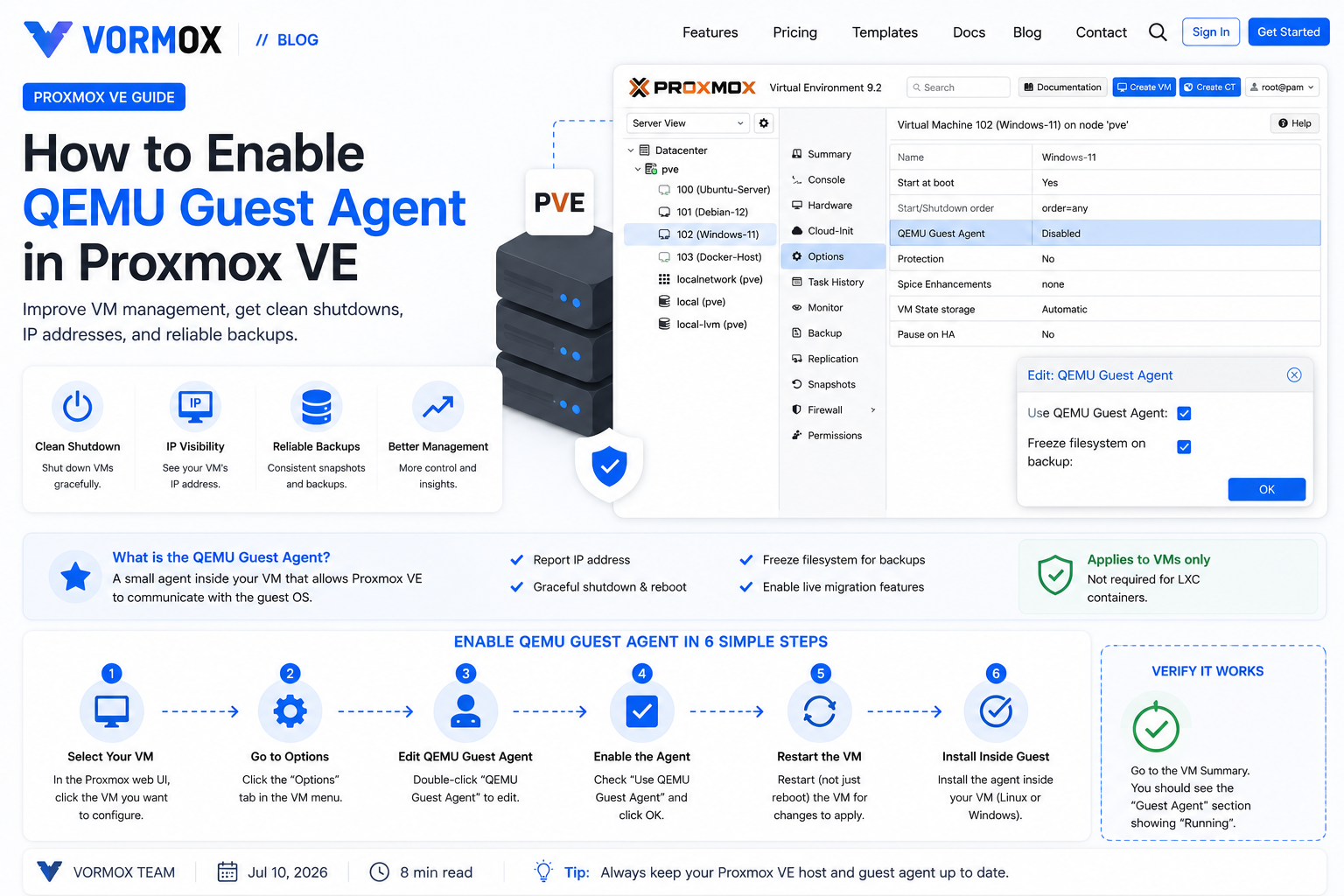
The QEMU Guest Agent is a small background service that runs inside your virtual machine's operating system. Think of it as a translator that lets Proxmox VE (the "host") talk directly to the software running inside your VM (the "guest"), instead of only being able to guess what is happening in there.
Without the agent, Proxmox can start, stop, and monitor the CPU and memory usage of a virtual machine, but it has no real visibility into what is happening inside the operating system itself. With the agent installed, Proxmox can ask the guest operating system questions like:
- "What IP address are you currently using?"
- "Can you shut yourself down cleanly instead of being forcefully powered off?"
- "Can you pause disk writes for a moment so I can take a consistent backup or snapshot?"
This two-way communication happens over a special virtual serial connection, so there is no need to open any network ports or configure firewall rules for it to work.
A Quick Note on VM vs Container
The QEMU Guest Agent only applies to virtual machines (VMs), which run their own full operating system and kernel on top of virtualized hardware. It does not apply to LXC containers, which are a lighter form of virtualization that share the host's kernel. If you are working with an LXC container instead of a VM, this guide does not apply to it, since containers already share information directly with the host.
Why Would You Use It?
You might be tempted to skip this step, especially when you are just getting started and everything seems to work fine without it. However, a few important Proxmox features depend entirely on the guest agent being installed and running.
| Without QEMU Guest Agent | With QEMU Guest Agent |
|---|---|
| Shutdown button forcefully powers off the VM, like pulling a power cable | Shutdown button asks the OS to close programs and shut down cleanly |
| Proxmox has no idea what IP address the VM is using | The VM's IP address shows up directly in the Proxmox summary tab |
| Backups and snapshots capture the disk exactly as it is, which can occasionally catch a file mid-write | The filesystem is briefly frozen for a split second so backups and snapshots are consistent |
| Live migration between nodes can be less reliable for some workloads | Live migration gets extra coordination from the guest OS |
In short: if you care about clean shutdowns, reliable backups, or simply want to see your VM's IP address without logging into it, the guest agent is worth the two minutes it takes to set up.
Prerequisites
Before you start, make sure you have the following:
- A working Proxmox VE installation (this guide applies to Proxmox VE 8.x and 9.x)
- At least one virtual machine already created, either running Linux or Windows
- Administrator access to the Proxmox web interface
- The ability to log in to the guest operating system, either through the Proxmox console or SSH/RDP
- An active internet connection inside the virtual machine, since Linux systems will download the agent package from their repositories
You do not need any special hardware for this. The QEMU Guest Agent works on virtually any VM configuration.
Step-by-Step Tutorial
Step 1: Enable the Guest Agent Option in Proxmox VE
The first step happens on the Proxmox side, not inside the virtual machine. You need to tell Proxmox that this VM is expected to have the agent installed.
- Log in to the Proxmox VE web interface.
- In the left-hand tree, click the virtual machine you want to configure.
- Click the Options tab.
- Double-click QEMU Guest Agent (or select it and click Edit).
- Check the box labeled Use QEMU Guest Agent and click OK.
If the virtual machine is currently running, you will need to restart it (not just reboot the operating system, but fully stop and start the VM) for this setting to take effect, since it changes the virtual hardware configuration.
You can also do this from the command line on the Proxmox host itself, which is faster if you are comfortable with a terminal:
qm set VMID --agent enabled=1Replace VMID with the actual ID number of your virtual machine, which you can find at the top of its summary page in the web interface.
Step 2: Install the Agent Inside a Linux Guest
Now switch over to the guest operating system itself. Open a console session or SSH into the VM, then run the commands for your distribution.
For Debian or Ubuntu based systems:
sudo apt update
sudo apt install -y qemu-guest-agent
sudo systemctl enable --now qemu-guest-agent
For Red Hat, Rocky Linux, AlmaLinux, or Fedora based systems:
sudo dnf install -y qemu-guest-agent
sudo systemctl enable --now qemu-guest-agent
The enable --now part does two things at once: it starts the service immediately, and it also configures the service to start automatically every time the VM boots. This means you will not need to repeat this step after future reboots.
Step 3: Install the Agent Inside a Windows Guest
Windows requires a couple of extra steps because it needs a driver before the agent can communicate through the virtual serial device.
- Download the latest VirtIO driver ISO from the official Proxmox VirtIO Windows drivers page.
- In the Proxmox web interface, attach this ISO to the VM as a second virtual CD/DVD drive (Hardware tab, Add, CD/DVD Drive).
- Inside Windows, open Device Manager. You should see an unrecognized device called PCI Simple Communications Controller with a yellow warning icon.
- Right-click it, choose Update driver, then Browse my computer for drivers, and point it to the
vioserial\w10\amd64folder (or the matching folder for your Windows version) on the mounted ISO. - Once the driver installs, open the ISO's
guest-agentfolder and runqemu-ga-x86_64.msifor 64-bit Windows, orqemu-ga-i386.msifor 32-bit Windows. - Follow the installer prompts. No configuration is needed; it installs itself as a background Windows service.
You can confirm the service is present by opening PowerShell and running:
Get-Service QEMU-GAThe Status column should show Running.
Step 4: Confirm the Agent Is Working
Back on the Proxmox host, run the following command, replacing VMID with your virtual machine's ID:
qm agent VMID pingIf everything is set up correctly, this command returns nothing and simply exits without an error, which means the ping was successful. You can also open the VM's Summary tab in the web interface; within a minute or two, its IP address should appear automatically, and the guest agent warning icon should disappear.
Commands Explained
| Command | What It Does |
|---|---|
qm set VMID --agent enabled=1 |
Tells Proxmox this VM should use the guest agent, from the host side |
apt install -y qemu-guest-agent |
Downloads and installs the agent package on Debian/Ubuntu systems, with -y automatically confirming the install |
dnf install -y qemu-guest-agent |
Same idea, but for Red Hat family distributions that use the dnf package manager instead of apt |
systemctl enable --now qemu-guest-agent |
Starts the agent service right away and also sets it to launch automatically at every future boot |
qm agent VMID ping |
Sends a test message from the Proxmox host to the guest agent to confirm the communication channel is alive |
Get-Service QEMU-GA |
A Windows PowerShell command that checks whether the QEMU Guest Agent Windows service is installed and running |
Common Errors
"QEMU Guest Agent is not running" warning stays even after installing it
This almost always means the VM was not restarted after you checked the "Use QEMU Guest Agent" box in Step 1. Simply rebooting the operating system is not enough here, because the agent option changes the virtual hardware presented to the VM. Shut the VM down completely and start it again.
qm agent VMID ping returns "QEMU guest agent is not running"
This means Proxmox is not receiving a response from inside the VM. Double-check that the service was actually installed and started with systemctl status qemu-guest-agent on Linux, or Get-Service QEMU-GA on Windows.
"PCI Simple Communications Controller" has no driver on Windows
This is expected right after installing Windows. It only goes away once you install the VirtIO serial driver described in Step 3. Until that driver is installed, the guest agent software has no way to talk to Proxmox, even if you install the MSI package.
IP address still not showing in the Summary tab
Give it a minute or two after the service starts, since Proxmox polls the agent periodically rather than instantly. If it still does not appear, confirm the VM actually has an IP address assigned in the first place by checking its network settings inside the guest.
Troubleshooting
If the guest agent still refuses to cooperate after following the steps above, work through this checklist in order:
- Check the Options tab again. Confirm "Use QEMU Guest Agent" is actually checked and saved for the VM.
- Fully restart the VM. Not a reboot from inside the operating system, but a stop and start from the Proxmox interface.
- Check the service status inside the guest. On Linux, run
sudo systemctl status qemu-guest-agentand look for the word "active (running)". If it says "failed" or "inactive", check the logs withjournalctl -u qemu-guest-agent. - Reinstall the VirtIO serial driver on Windows. An outdated or corrupted driver is one of the most common causes of a silent guest agent on Windows VMs.
- Update the VirtIO ISO. If you built the VM a long time ago, download the latest VirtIO driver ISO, since older versions can have bugs that were later fixed.
- Check firewall or security software inside the guest. This is rare since the agent uses a virtual serial device rather than the network, but some overly strict security tools have been known to interfere with local services.
Best Practices
- Enable the QEMU Guest Agent on every new virtual machine you create, right after installing the operating system, so it becomes a habit rather than an afterthought.
- Always restart the VM after toggling the agent option in Proxmox, not just reboot the guest operating system.
- Keep the VirtIO driver ISO up to date on your Proxmox host, especially before building new Windows virtual machines.
- If you use automated VM templates or Cloud-Init images (a system that lets you pre-configure things like usernames, passwords, and network settings before a VM first boots), bake the guest agent installation directly into the template so every new VM created from it already has the agent ready to go.
- Verify the agent with
qm agent VMID pingafter any major change to the VM, such as migrating it to another node or restoring it from a backup.
Frequently Asked Questions
Does the QEMU Guest Agent slow down my virtual machine?
No. It is an extremely lightweight background service that uses a negligible amount of CPU and memory. You will not notice any performance difference.
Is the QEMU Guest Agent required to use Proxmox VE?
No, Proxmox VE will run virtual machines perfectly fine without it. It is optional, but strongly recommended because of the extra reliability it adds to shutdowns and backups.
Do LXC containers need the QEMU Guest Agent?
No. Containers share the host's kernel directly, so Proxmox already has full visibility into them without needing a separate agent.
Can I install the guest agent after the VM has already been running for a while?
Yes. There is no need to reinstall the operating system. Just follow Steps 1 through 4 on an existing VM at any time.
Why does Windows need a driver but Linux does not?
Linux distributions typically already include the necessary VirtIO serial drivers built into the kernel, while Windows does not ship with them by default, which is why you have to install them manually from the VirtIO driver ISO.
Will enabling the guest agent option break my VM if the agent isn't installed yet?
No. It is safe to enable the option in Proxmox even before installing the agent inside the guest. The VM will keep running normally; Proxmox will simply show a warning icon until the agent is installed and running.
Conclusion
The QEMU Guest Agent is one of those small details that is easy to overlook when you are new to Proxmox VE, but it makes a real difference once your homelab or server starts running several virtual machines. Clean shutdowns, accurate IP address reporting, and consistent backups are all things you will come to appreciate, especially as your setup grows.
Now that you know how to enable it on the Proxmox side and install it inside both Linux and Windows guests, make it part of your standard checklist every time you spin up a new virtual machine. It only takes a couple of minutes, and it saves you from a handful of confusing problems later on.