Introduction
Right after you install Proxmox, you're handed two buttons that do roughly the same job in completely different ways: Create VM and Create CT. Nothing in the interface tells you which one you actually want, and picking the wrong one for a given workload usually doesn't cause a crash — it just means you're wasting RAM, waiting longer on boots, or missing a feature you needed and didn't realize.
New users tend to pick one and stick with it out of habit. VMware veterans default to VMs because that's the only tool they've ever had. Docker users sometimes assume containers are always the lighter, smarter choice. Neither instinct is wrong exactly, but neither is complete either.
This one's less of a how-to and more of a "which one do I actually need" — a practical comparison so you can stop guessing and start matching the right technology to the job.
What You Will Learn
- What actually happens under the hood with a VM versus an LXC container
- Where each one wins on performance, isolation, and flexibility
- A side-by-side comparison table you can reference later
- A simple decision process for picking between the two
- How to quickly spin up one of each to see the difference yourself
- Mistakes people commonly make when choosing the wrong option
What Is This Feature?
Proxmox VE ships with two separate virtualization technologies built in, and understanding the difference between them comes down to one question: does the guest need its own kernel, or can it share the host's?
A virtual machine, powered by QEMU, emulates a complete set of hardware — CPU, memory, disk controller, network card — and boots a fully independent operating system on top of that emulated hardware. The guest OS has no idea it's virtualized unless you tell it. This is what makes VMs able to run Windows, BSD, or any Linux distribution, completely isolated from the host.
An LXC container skips the hardware emulation entirely. It's a set of isolated processes running directly on the Proxmox host's own Linux kernel, kept separate from everything else using kernel features called namespaces and cgroups. Namespaces make a container's processes, network, and filesystem look private, even though they're technically running alongside the host's own processes. Cgroups limit how much CPU and memory each container is allowed to use, so one container can't starve the others.
Because a container shares the host kernel, it can only run Linux — the exact same kernel version as the Proxmox host, in fact, just a different userland and filesystem on top of it.
Why Would You Use It?
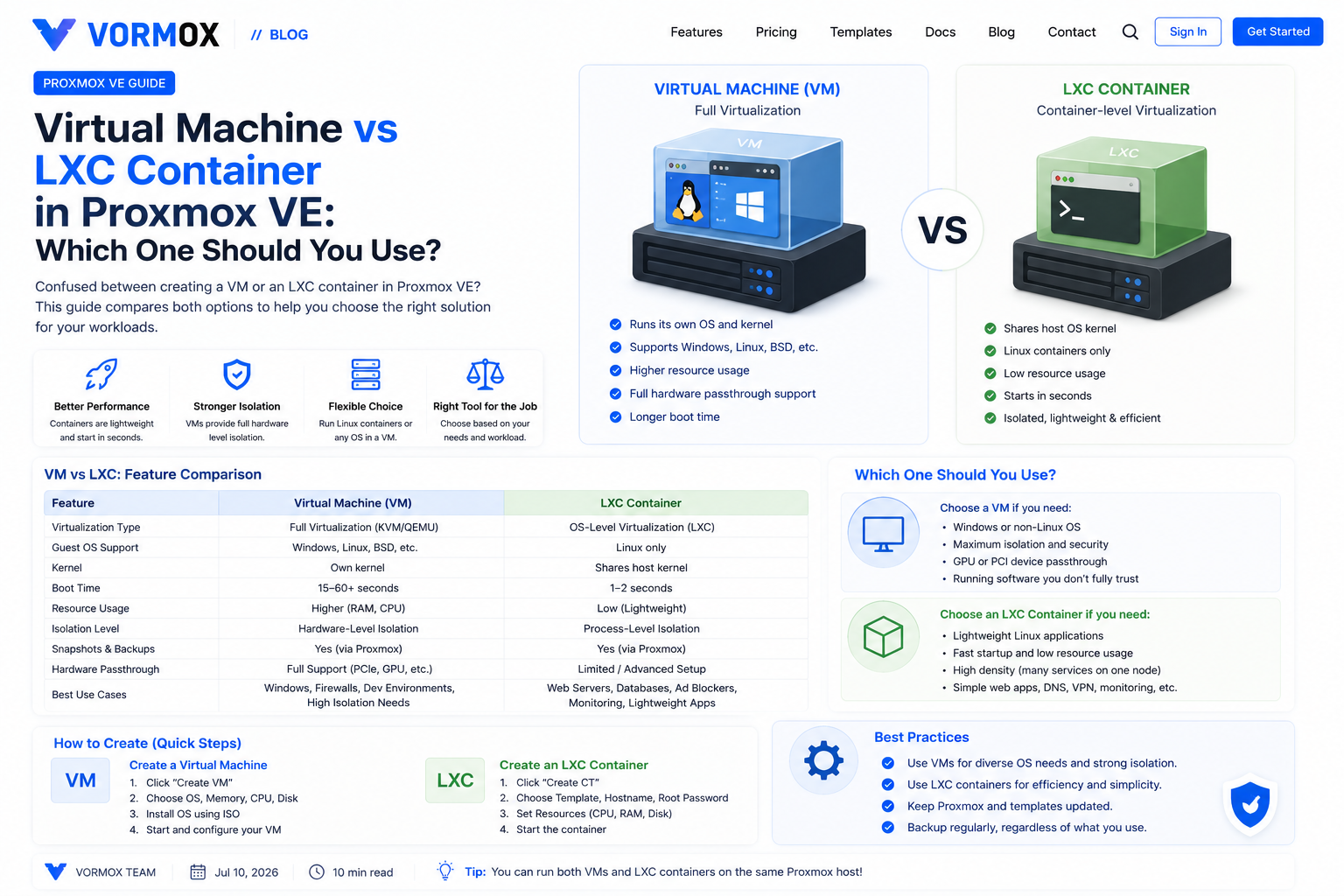
Here's the comparison laid out directly, since this is the part people actually want to reference:
| Virtual Machine | LXC Container | |
|---|---|---|
| Kernel | Own separate kernel | Shares the host's kernel |
| Guest OS options | Windows, BSD, any Linux | Linux only |
| Boot time | 15–60+ seconds | 1–2 seconds |
| Idle RAM usage | 512 MB–2 GB+ | 50–200 MB |
| Isolation strength | Full hardware-level separation | Process-level separation |
| Hardware passthrough (GPU, PCI devices) | Fully supported | Limited, more fragile to configure |
| Snapshots | Yes (storage dependent) | Yes (storage dependent) |
| Best for | Windows, firewalls like pfSense, anything needing strong isolation or passthrough | Lightweight Linux services — Pi-hole, small web apps, monitoring agents |
The pattern that falls out of this table is pretty simple. If you need a different operating system, direct hardware access, or you're running something you genuinely don't trust and want maximum separation from the host, reach for a VM. If it's a Linux-only service and speed or density matters, a container almost always wins.
Where it gets less obvious is the middle ground — a small self-hosted app that could go either way. In that case I'd lean container by default, and only bump it up to a VM if I hit a specific limitation, like needing a kernel module the host doesn't have, or wanting stronger isolation because the software is exposed to the internet.
Clustering behavior is another point worth knowing about, even if it doesn't come up until later. Both VMs and containers can live-migrate between nodes in a Proxmox cluster when their storage is shared, but VM migration is generally more mature and predictable — it's been the primary use case for QEMU-based migration for years. Container migration works too, and for most workloads it's perfectly reliable, but it's worth testing a migration on a non-critical container before you depend on it for something important.
Prerequisites
- A working Proxmox VE 8.x or 9.x installation
- A downloaded container template (for the container side of the comparison) and an OS installer ISO (for the VM side), if you want to follow the hands-on comparison below
- A rough idea of what you're actually trying to run — the decision gets a lot easier once you know the workload
Step-by-Step Tutorial
Step 1: Ask what operating system the workload needs
If it's Windows, FreeBSD, or anything that isn't Linux, the decision is already made for you — that has to be a VM. No amount of container tuning gets around this; it's a hard technical limit, not a preference.
Step 2: Check whether it needs direct hardware access
GPU transcoding, a dedicated network card, a USB device passed straight through — these scenarios lean heavily toward VMs. Containers can do some limited device passthrough, but it's fiddly and version-dependent in a way that VM-level PCI passthrough generally isn't.
Step 3: Weigh how much you trust the software
Running something exposed directly to the internet, or software from a source you're not fully confident in? The stronger isolation of a VM is worth the extra resource cost. For a service you built yourself or that's well-established and trusted, a container's lighter isolation is usually an acceptable tradeoff.
Step 4: Try both and feel the difference yourself
The fastest way to internalize this comparison is to create one of each and watch how they behave. Spin up a minimal Debian container:
pct create 210 local:vztmpl/debian-13-standard_13.0-1_amd64.tar.zst \
  --hostname test-ct --memory 512 --rootfs local-lvm:8
pct start 210
Then create an equivalent minimal Debian VM through the Create VM wizard, or from the command line:
qm create 211 --name test-vm --memory 512 --cores 1
qm start 211
Time how long each one takes to become responsive. The gap is usually dramatic enough that you won't need convincing again.
Step 5: Make the call and move on
Don't overthink this for every single workload. For the majority of homelab services, the decision takes about five seconds once you've internalized the tradeoffs above. Save the deliberation for the genuinely ambiguous cases.
Commands Explained
| Command | What it does |
|---|---|
pct create <id> <template> --hostname <name> --memory <mb> --rootfs <storage:size> | Creates a new LXC container from a template with basic resource settings |
pct start <id> | Boots a container — typically responsive within a second or two |
qm create <id> --name <name> --memory <mb> --cores <n> | Creates a new VM shell with basic resource settings, before you attach an ISO and install an OS |
qm start <id> | Boots a VM — expect a proper BIOS/UEFI boot sequence before the OS itself even starts loading |
pct config <id> / qm config <id> | Prints the full configuration for a container or VM, useful for comparing what each one actually reserved |
Common Errors
Trying to run a Windows ISO through the Create CT wizard
This isn't really an "error message" so much as a wasted ten minutes — the Create CT wizard only accepts LXC templates, not OS installer ISOs, so a Windows or general-purpose Linux ISO simply won't appear as an option there. If you're reaching for an ISO file at all, you want Create VM, not Create CT.
GPU passthrough failing inside an LXC container
Container-based GPU passthrough requires the device to be manually bound and mapped into the container's cgroup rules, and it's a lot more brittle than the equivalent VM-level PCI passthrough. If you're fighting this for more than an hour, it's often faster to just move the workload to a VM.
"exec format error" or similar after moving a container's rootfs to different hardware
Containers share the host kernel, so a container built and tested on one CPU architecture won't run on another — an ARM-based Proxmox host and an x86 one aren't interchangeable for container templates the way they can be for some VM images.
Troubleshooting
- Not sure which one is using more resources right now? Check Datacenter > Summary in the GUI, or run
pct listandqm listfrom the shell to see status and resource allocation for each side by side. - A container feels sluggish compared to what you expected. Check whether it's actually CPU or memory limited with
pct config <id>— it's easy to set container limits too conservatively and forget you did it. - Deciding between the two for a database. Small, low-traffic databases run fine in containers. Anything performance-critical or that needs kernel-level tuning specific to the database engine often does better in a VM where you have full control over the kernel.
- Second-guessing a choice you already made. You're not locked in forever — migrating a service between a container and a VM means reinstalling it in the new guest type, which is more of a "plan ahead" cost than a "you're stuck" cost.
Best Practices
Default to containers for anything Linux-only and low-risk, and reserve VMs for the cases that genuinely need them — different OS, hardware passthrough, or strong isolation. Resist the urge to standardize on just one technology for everything; that's usually a sign you're forcing the wrong tool onto some of your workloads.
Keep a rough mental budget of your host's RAM and lean on containers when you're getting tight on resources. Ten lightweight containers can fit comfortably where two or three VMs would max things out.
Document which guest type you used and why, even just in the VM or container's name or notes field. Six months from now you won't remember whether you picked a container for Pi-hole because it made sense or because it was the default — future you will appreciate the reminder.
If you're building out a homelab from scratch, it's worth prototyping a service as a container first, even if you suspect it'll eventually need to be a VM. Containers are cheap and fast to throw away, so testing whether something actually needs full VM isolation costs you almost nothing, versus committing to a heavier VM upfront and finding out later it was overkill.
Frequently Asked Questions
Can I run Docker inside a container, or does it need a VM?
Docker can run inside an LXC container, but it takes some extra configuration (nesting features enabled) and isn't as clean as running Docker inside a VM. Plenty of people do it successfully; just expect a bit more setup than a stock container.
Which one is easier to back up?
Both back up the same way through Proxmox's built-in backup tool, and both restore just as easily. Neither has a real advantage here.
Do containers get security updates the same way VMs do?
Yes — you update the software inside a container exactly like you would inside a VM, using the distribution's normal package manager. The shared kernel doesn't change how userland updates work.
Is it true that containers are always more secure than VMs?
No, actually the opposite in terms of isolation strength — VMs provide stronger separation from the host because they don't share a kernel. Containers are lighter and faster, not inherently more secure.
Can a Proxmox cluster mix VMs and containers on the same node?
Yes, without any issue. Most real-world Proxmox hosts run a mix of both side by side.
If I'm just starting out, is it okay to only learn one of the two at first?
Sure, but don't stop there for long. They're different enough that skipping one means you'll eventually hit a workload the other handles far better, and you'll want the option already familiar rather than learning it under time pressure.
Conclusion
Neither VMs nor containers are the "correct" choice in Proxmox — they're just different tools solving overlapping problems in different ways. Once you've internalized the tradeoffs around kernel sharing, OS flexibility, and isolation, picking between Create VM and Create CT stops being a coin flip and starts being an obvious five-second decision almost every time.